1. What’s New
Sponsoring Portal 2.7
- LDAP Directory configuration
-
With this version, you can configure different base DNs for users and groups.
The what’s new archive can be found here.
2. Configuration
Only users with the role Admin, such as the default user sp-admin are allowed to configure the Sponsoring Portal.
2.1. Certificates
All certificates are handled by the external Java trust store. Therefore you must import any SSL certificate that is in place in your environment like MPP, Macman or external User Directory.
2.1.1. How to import a certificate into the Java trust store
In order to verify a remote peer the Sponsoring Portal has to be able to verify the remote host’s certificate. Either you have the certificate already or you have to fetch it from the server.
remote_host=ldap.exmaple.com
remote_port=636
openssl s_client -servername ${remote_host} -host ${remote_host} -port ${remote_port} < /dev/null 2>/dev/null | sed -n '/^-----BEGIN CERTIFICATE-----$/,/^-----END CERTIFICATE-----$/p' > ${remote_host}.crtremote_host=ldap.exmaple.com
keytool -import -file ${remote_host}.crt -alias ${remote_host} -keystore /usr/lib/sponsoring-portal/truststore.jks
The default password of the trust store is password.
|
2.1.2. Configure the Sponsoring Portal to use the local trust store
Open the configuration file /usr/lib/sponsoring-portal/sponsoring-portal.conf and extend the JAVA_OPTS as follows:
JAVA_OPTS="-Djavax.net.ssl.trustStore=/usr/lib/sponsoring-portal/truststore.jks -Djavax.net.ssl.trustStorePassword=<password>"| <password> must be replaced with the real trust store password (see above). |
After the configuration change has been fulfilled do not forget to restart the Sponsoring Portal systemctl restart sponsoring-portal.
2.2. Organizational Unit
An organizational unit (shortened to org unit) is defined with a name and an optional comment. Multiple organizational units can be structured as parent-child relations.
2.2.1. Configure Organizational Unit
The behavior of an org unit (and its children) is configured through its Permissions & Settings view.
Permissions & Settings
New permissions & settings of an org unit are applied to a particular Group. Such a group must be configured beforehand. The Org Unit - Group relation owns the permissions & settings.
Permissions & settings are applied to these general types of entities:
-
Guest User (MPP user)
-
MPP Device
-
MPP Voucher
-
Macman User
-
Macman Device
Permissions are read, create, edit and delete, while settings are entity type specific. Both permissons & settings are inherited within org units.
Any configuration issue is shown either as an error or as a warning. Errors indicate a configuration issue which must be corrected by the administrator of the Sponsoring Portal.
The optional field Delete After relates to an Input Template field. If it is defined here, make sure is is visible or enabled on the input template, and vice versa.
Guest User
Guest user specific settings are applied here.
User groups are retrieved from MPP MPP Configuration. These settings need to be configured, and are used to create a guest user.
MPP Device
MPP device specific settings are applied here.
User groups are retrieved from MPP MPP Configuration. These settings need to be configured, and are used to create a MPP device.
MPP Voucher
MPP voucher specific settings are applied here.
Voucher groups are retrieved from MPP MPP Configuration. These settings need to be configured, and are used to create a MPP voucher.
Macman User
Macman user specific settings are applied here.
Device groups are retrieved from Macman through Macman Configuration. These settings need to be configured, and are used to create a Macman user.
Macman Device
Macman device specific settings are applied here.
Device type, device groups and organizational units are retrieved from Macman through Macman Configuration. These settings need to be configured, and are used to create a Macman device.
2.3. Group
A group is a container. It is used for Organizational Unit - Group relation, and to limit My Device approval.
Any synchronized user of a User Directory can be assigned to a group. This helps to easily identify remote users on the Sponsoring Portal.
2.3.1. Configure Group
A group has a unique name, an optional comment, and a max. my devices field. It specifies how much devices a user can approve.
2.4. User Account
User accounts are either created locally, or synchronized from a user directory.
If a user account belongs to the Local Directory, it can be assigned to zero, one or more Groups.
If a user account is synchronized from a LDAP Directory, the user is assigned to a standard group. The standard group is configured in the User Directory general administration.
2.5. User Directory
Two types of user directories can be configured:
-
Local Database
-
LDAP Directory
You can manage the users locally on the Sponsoring Portal or connect it to several LDAP directories including Microsoft’s Active Directory. The user chooses the directory on the login page.
2.5.1. LDAP Directory
Four sections of a LDAP directory can be configured:
-
General
-
Connection
-
User account LDAP attributes
-
Group LDAP attributes
General
A remote user is assigned to a local Standard Group, if it is synchronized. A standard group is like any other Group, with this exception: a synchronized User Account can not unmap itself from the standard group. The LDAP directory is the authority of this user account, and the standard group defines the mapping to the Sponsoring Portal.
A standard group can be remapped to another group, nevertheless.
To remove all users from a directory on the Sponsoring Portal, the standard group can be set to (None).
Connection
This section defines basic connection settings and some synchronization related configuration options.
The LDAP time limit in seconds defines how long one request can go. Synchronization of a large directory uses multiple requests.
The LDAP count limit of 0 means that all entries are synchronized. This should be the default. For a general connection test run, the value can be set to i.e. 10, to limit the amount of transferred entries.
The LDAP sync intervall in minutes defines how often the whole(!) data is transferred from the directory to the Sponsoring Portal for synchronization.
The LDAP page size specifies the batch size of one result, which is transferred from the directory to the Sponsoring Portal.
Active Directory Attribute Mapping
| Field | Attribute |
|---|---|
User account ID attribute |
|
Display name attribute |
|
First name attribute |
|
Last name attribute |
|
Username attribute |
|
User group attribute |
|
Email attribute |
|
Phone number attribute |
|
User object class |
|
| Field | Attribute |
|---|---|
Unique group id attribute |
|
Display name attribute |
|
Group description attribute |
|
Group member attribute |
|
Group member of attribute |
|
Group object class |
|
Synchronization
| Sponsoring Portal synchronization goes one way, from remote to local. The remote directory is the authority of the data, and the Sponsoring Portal consumes the data. |
LDAP directory synchronization is done on configuration Save, is triggered automatically, or can be activated by pressing the Synchronize button.
Directory Service Groups
All available Directory Service Groups are shown here. It is possible to assign a directory service group to one or more local Groups.
A remote group is assigned to a Local Group, if it is synchronized. All users within the remote group are assigned to this local group. Like with the standard group, a synchronized User Account can not unmap itself from such a group. The LDAP directory is the authority, and the local group defines the mapping to the Sponsoring Portal.
Local groups are optional. If none is chosen, just the standard group is used.
2.6. MPP Configuration
The MPP configuration is required to connect the Sponsoring Portal with the MPP.
2.6.1. Connection
Configure the MPP host and port and preferably use HTTPS, if configured. Set credentials, i.e. mpp-admin with the corresponding password.
The connection timeout defines how long the Sponsoring Portal tries to establish a connection to the MPP. The sync interval specifies the interval in which the Sponsoring Portal fetches data from the MPP.
2.6.2. Guest User Template Settings
The Sponsoring Portal lets you display or download the data of a created Guest User.
The template settings define how the data shall be rendered. The data is shown as PDF or plain TXT. Please see the supported fields information box for all available fields.
The file download time limit defines after how many minutes the template data shall be deleted. It must be deleted as it contains sensitive information.
2.6.3. MPP Voucher Template Settings
The Sponsoring Portal lets you display or download the data of a created MPP Voucher.
The template settings define how the data shall be rendered. The data is shown as PDF or plain TXT. Please see the supported fields information box for all available fields.
2.7. Macman Configuration
The Macman configuration is required to connect the Sponsoring Portal with the Macman.
2.7.1. Connection
Configure the Macman host and port and preferably use HTTPS, if configured. Set credentials, i.e. BYOD with the corresponding password.
The connection timeout defines how long the Sponsoring Portal tries to establish a connection to the Macman. The sync interval specifies the interval in which the Sponsoring Portal fetches data from the Macman.
2.7.2. Macman User Template Settings
The Sponsoring Portal lets you display or download the data of a created Macman User.
The template settings define how the data shall be rendered. The data is shown as PDF or plain TXT. Please see the supported fields information box for all available fields.
The file download time limit defines after how many minutes the template shall be deleted. It must be deleted as it contains sensitive information.
2.8. My Device Configuration
2.9. Custom Fields
Custom fields can be defined to enhance Input Templates with additional input fields.
A custom field consists of a unique name and has a type. Based on the type, additional fields such as values or regular expression can be defined.
The following types are available:
-
List: defines a list with values; a value can be selected
-
Text: any text is possible, supports a regular expression to validate the text
-
Yes/No: offers a simple yes-or-no checkbox
An ID is assigned to a custom field, if it is added to the Sponsoring Portal. The ID can be used to identify a custom field from the MPP configuration, for TXT or PDF export.
2.10. Input Template
An input template can be defined to configure which fields are visible on an input form. In addition, static or generated values can be assigned to an input field of a template. The purpose is to simplify and automate user input. The user requires less time to fill out the form. Some input templates can be enhanced with Custom Fields.
Input templates exist for the following forms:
-
New Guest User (supports custom fields)
-
New MPP Device (supports custom fields)
-
New MPP Voucher
-
New Macman User (supports custom fields)
-
New Macman Device (supports custom fields)
2.10.1. Configure Input Template
An input template has a unique name, an optional comment, and a priority. It is referenced from the Permissions & Settings of an Organizational Unit.
| The input template with the highest permission is presented to a Guest User, if he is member of multiple groups. |
A collection of field settings define how the input template looks and behaves. Each field is defined with a field name, if it is visible, if a value provider is enabled, and with a default value.
| Visible | Enabled | Value | Result |
|---|---|---|---|
True |
True |
A value must be configured |
Field is visible and has read-only value |
True |
False |
Value is ignored |
Field is visible and uses user-input |
False |
True |
A value must be configured |
Field is invisible and has value |
False |
False |
No value |
This combination is not allowed for mandatory fields! |
Two types of value providers do exist:
-
Static value. A default value is defined in the input template and is applied to the form; example: Valid For 1440 minutes, Enabled: true
-
Generated value. A value generator produces a value for the form; example: Valid From First Login, Voucher Code: 5313
Some value providers, such as the username-, password- or vouchercode-provider require additional configuration.
The MPP Device field MAC Addresses can’t be modified. It is shown for completeness.
The field Delete After (not available in MPP Voucher) needs to be visible or enabled if it is configured within Permissions & Settings. Adding this field to an input template without setting the permissions & settings doesn’t have any effect.
Custom Fields
Some input templates can be extended with Custom Fields. A custom field of an input template supports the same configuration options. An additional optional field can be configured. It specifies if the field requires an input value or not.
2.11. FTP Servers
The Sponsoring Portal uses one or multiple FTP servers to download CSV files for import tasks.
2.12. Import Tasks
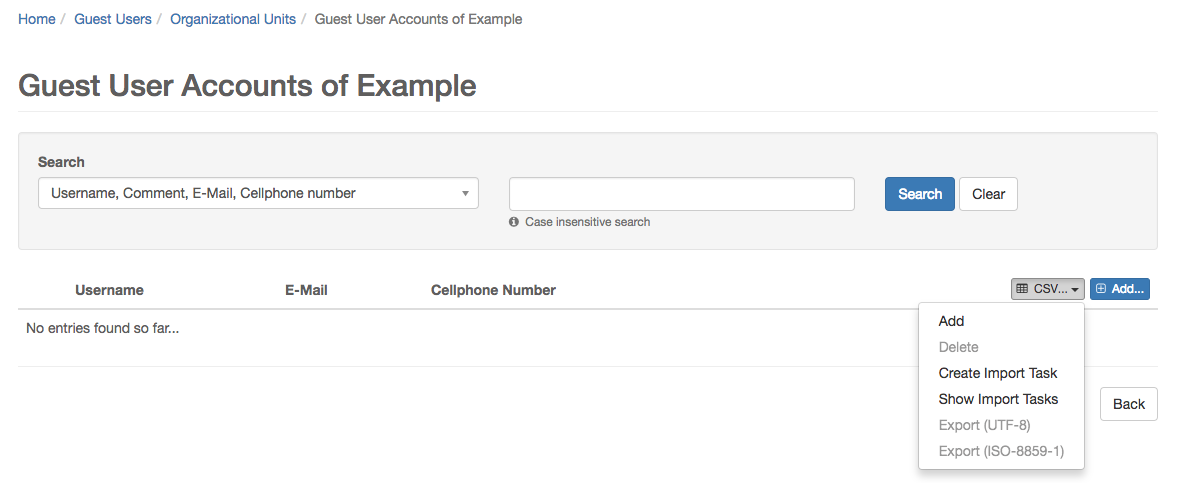
Import tasks are used to automatically download files from an FTP server and create or update entities via CSV Import. They can be created for Guest Users, MPP Devices, Macman Users and Macman Devices using the CSV dropdown button on the Organizational Unit view.
Existing import tasks can be managed in the Administration / Import Tasks view.
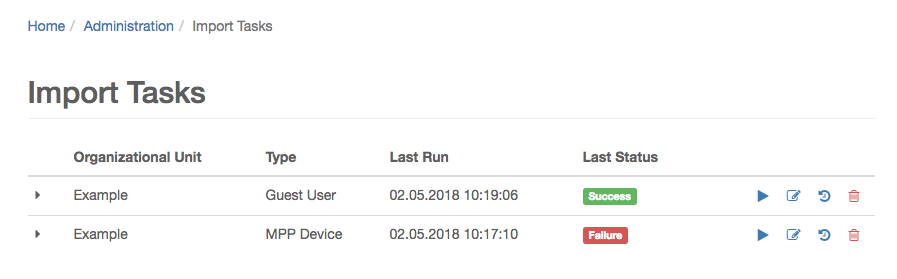
The Import task history view shows the status of the executions of a task. The number of task executions that are stored can be configured.
2.12.1. Configuration
| An import task runs with the permissions and settings of the user that last edited it. If you want to use a specific input template you can create a new user and change the settings accordingly. |
An import task is configured in the following 4 steps:
Step 1: General Settings
Source
The FTP server used to download files. At least one server must be configured in order to create an import task.
Import Strategy
-
Full: Creates or updates all entities that are in the downloaded file and deletes all existing entities that are not.
-
Cumulative: Creates or updates all entities that are in the downloaded file. No entities are deleted.
Step 2: Information Settings
Email Notification
E-mail notifications can be sent after a task execution. The SMTP server settings must be defined in the application.properties file.
One of the following notification types can be used:
-
Always: A notification is sent after each task execution.
-
Failure: A notification is sent after a failed task execution.
-
Success: A notification is sent after a successful task execution.
-
Never: No notifications are sent.
Step 3: File Settings
File Retention Policy
-
None: No action is performed.
-
Delete File: The downloaded file will be deleted from the FTP server after a successful task execution.
File Pattern
The file pattern is a regular expression that defines which file should be downloaded.
| If no pattern is defined, or if multiple files match the pattern, the newest file (ordered by last modified) will be used. |
Directory
The directory specifies the path on the FTP server used to download files.
File Selection
In order to reach the next step, a CSV file is required. Use the load button to get a list of all files that match the current settings. The file highlighted in green will be used for the field mapping in step 4.
Step 4: Field Mapping
The CSV field mapping is configured in the same way as for a manual CSV import. Please refer to Section 3.6.1.1, “CSV Field Mapping” for more information.
3. Administration
3.1. Guest User
Manage user accounts on the MPP, in order to grant network access to guests.
3.2. MPP Device
Manage user devices on the MPP, in order to grant headless or special devices network access.
A MPP device is related to an Organizational Unit. Given the user has the required Permissions & Settings, two options to manage MPP devices are provided here.
-
To fill out the input form
-
To use the CSV Import / Export tool
The first option is interactive and can add / delete one device, while the second option offers bulk actions.
3.3. Macman User
Manage user accounts on the Macman, in order to grant network access with WPA2 encryption into a dedicated network (VLAN, …).
3.4. Macman Device
Manage user accounts on the Macman, in order to grant network access with Layer 2 filtering.
A Macman device is related to an Organizational Unit and to a Macman Device Type setting. The device type defines which MAC addresses of a device are available. Given the user has the required Permissions & Settings, two options to manage Macman devices are provided here.
-
To fill out the input form
-
To use the CSV Import / Export tool
The first option is interactive and can add / delete one device, while the second option offers bulk actions.
3.5. My Device
Connect personal devices to the corporate network by using WPA2 encryption, in order to use this device at work.
3.6. CSV Import / Export
The tool can add or delete a number of entities (Guest Users, MPP Devices, Macman Users or Macman Devices) to the Sponsoring Portal at once. The input data is a comma (,) or semicolon (;) separated file, encoded with UTF-8 or ISO-8859-1, also called Latin 1. Former Microsoft Excel versions use this encoding, typically, when exporting to a CSV file.
CSV files can be imported manually, or by an import task. The import task allows to update entities.
3.6.1. Manual Import
Importing a CSV file is done in three steps:
-
Uploading the file by choosing the file, encoding and separator
-
Mapping the column fields
-
Executing the import
CSV Field Mapping
First of all, it must be defined on which row the import shall start.
Then, each column of the CSV file must be mapped to a field name of the Sponsoring Portal. This is done in the Column-Field Name Mapping table. If a field is provided by an Input Template, it cannot be mapped. The sponsoring portal tries to guess the correct mapping by reading the first line of the file.
The first few lines of the uploaded file are shown in a Preview below, to support the mapping decision.
| It is not needed to map all fields to delete entities. An information box shows which fields are required. |
| For Macman devices, it is not possible to map MAC addresses to particular device slots. MAC addresses are mapped to slots in ascending slot number order. |
Import
If the mapping is set, the uploaded file is imported by clicking Add or Delete. Based on the number of lines that are imported, it might take some time. The Sponsoring Portal connects to remote systems such as MPP or Macman, and does several validation checks to assure data integrity over all involved systems.
A success message is shown at the end, if no errors are detected.
| Updated entries are just counted for MPP and Macman Devices with multiple MAC addresses. A device is updated if some (not all) MAC addresses were deleted. |
Errors
If errors occur, a Summary page with Failed Lines appears. The summary shows deleted, updated and failed entries. Failed lines can be downloaded (as CSV), for correction. The error causes are added in a separate column. The whole import process can start over with the corrected CSV file.
3.6.2. Automatic import
A CSV import can be automated using an import Task. Please refer to Section 2.12, “Import Tasks” for more information.
3.6.3. Export
The entities of an organizational unit can be exported as CSV. The encoding is chosen, while the field separator (typically comma or semicolon) is determined automatically by the underlying locale. A header line is added to show the field names.
4. Installation
4.1. System requirements
| Component | Minimum | Recommended |
|---|---|---|
Processor |
Dual core with 2 GHz or faster |
Quad core with 2 GHz or faster |
RAM |
2 GB |
4 GB |
Storage |
40 GB |
>= 80 GB |
4.2. Product Dependency
The Sponsoring Portal requires at least the following MPP and / or Macman product versions.
Sponsoring Portal |
MPP Version |
Macman Version |
2.7.0 |
>= 6.7.1 |
>= 2.6.11 |
4.3. Install
To install the Sponsoring Portal, we need either a bare metal server or a virtual machine that meets the requirements as specified above.
Download the latest CloudGuard ISO from https://packages.cloudguard.ch/iso/.
After you have started from the disk image a similar GRUB screen will show up:
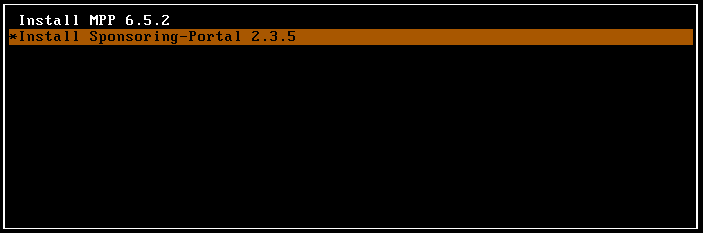
Select Install Sponsoring-Portal 2.7.0 and press return. As next, the setup wizard pops up. Follow the instructions. Next, to the wizard, the Sponsoring Portal gets installed on the local disk. This may take some minutes. To finish the installation the server reboots once, and a yellow Linux prompt appears.
4.3.1. VMware Tools
If you are running the Sponsoring Portal in a VMware virtual environment, we recommend that you install the open VM tools.
apt update
apt install open-vm-tools
4.3.2. Configure Reverse Proxy (Nginx)
With the default configuration the reverse proxy uses the self-signed certificates of the base system. In order to use
your own certificates you have to put the certificate key into the directory /etc/ssl/private/ and the certificate
combined with the intermediate certificate into the directory /etc/ssl/certs/. After that, edit the Nginx configuration
file /etc/nginx/sites-available/sponsoring-portal and set the value of the properties ssl_certificate_key and
ssl_certificate to match your setup.
To put the certificate with the intermediate within one file you can simply call
cat cert.crt intermediate.crt > cert-chain.crt on the CLI.
|
If the fully qualified domain name of the system does not match the URL pointing to the Sponsoring Portal, you have to modify the server_name property as well.
Check Nginx’s configuration with nginx -t and restart the Linux Daemon if everything is ok by issuing
systemctl restart nginx.
4.4. Access the Web Console
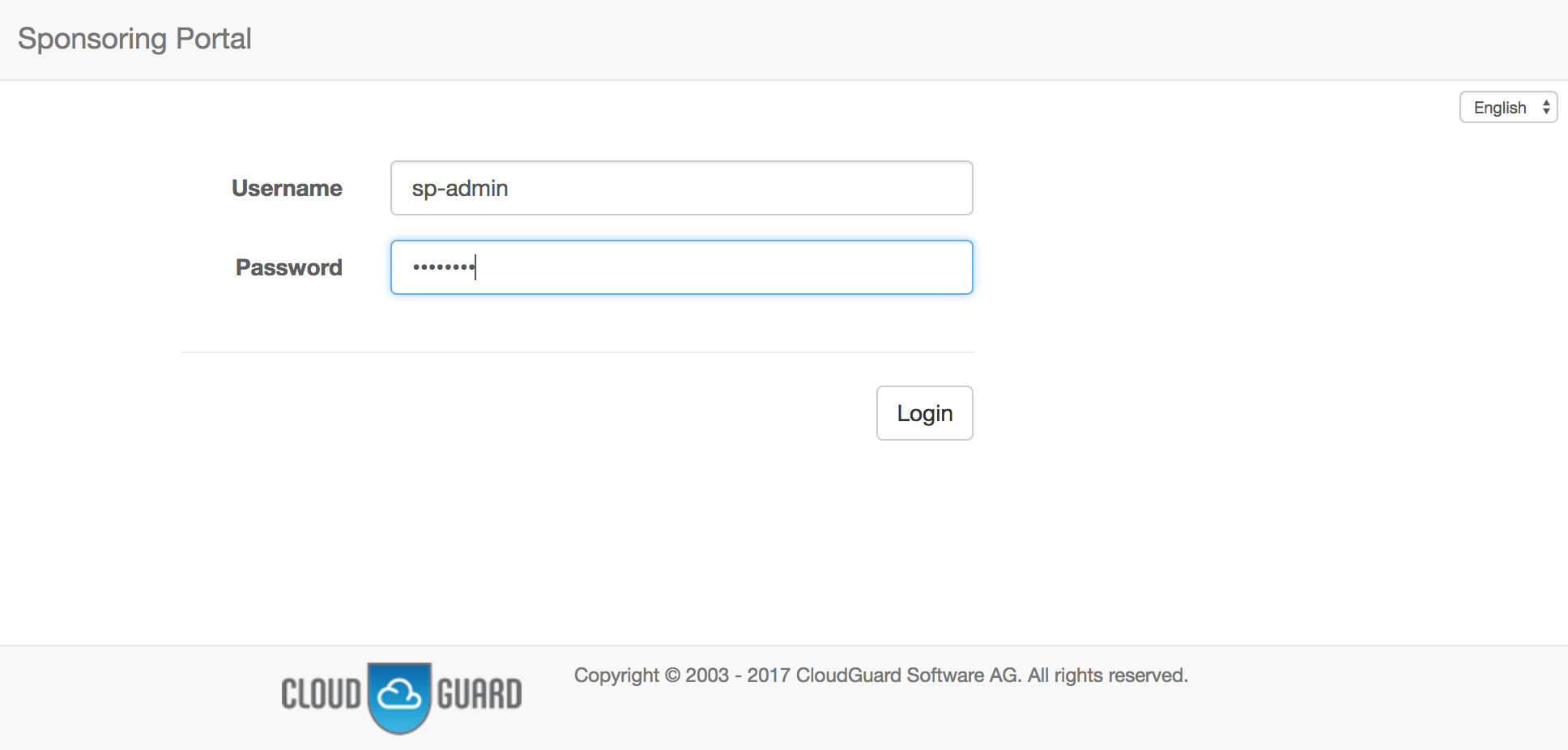
If nothing went wrong, you should now be able to access the web console by https://<server_name>/. Use sp-admin as username and password to login as administrator. This user has been created automatically during the package’s installation process.
5. What’s New Archive
5.1. Sponsoring Portal 2.6
- API
-
We added an API to manage Guest users, MPP devices, MPP vouchers, Macman users and Macman devices. See dedicated client API documentation for more information.
- Improve SSL security
-
Peer verification algorithms have been improved to make SSL connections more robust.
| There may be situations where some user directories that were previously able to successfully connect to an LDAP or AD server may no longer be able to do so. In most cases, this is the reason because an IP has been specified instead of the fully qualified domain name. |
6. Changelog
6.1. Sponsoring Portal 2.7.0
Released: September 19, 2018
Bug
-
[SP-320] - It may be better to use the same validator for the redirect URL as it is used on the MPP’s side
Story
-
[SP-333] - Provide two base DNs, one for users and one for groups
-
[SP-334] - Show 3rd party licenses on the about page
6.2. Sponsoring Portal 2.6.3
Released: August 14, 2018
Bug
-
[SP-332] - LDAP/AD authenticator does not validate the peer correctly
6.3. Sponsoring Portal 2.6.2
Released: July 31, 2018
Bug
-
[SP-330] - Broken Macman user search for custom type yes-no fields with exact match type
-
Fix two possible null pointer excpetions
6.4. Sponsoring Portal 2.6.1
Released: July 12, 2018
Story
-
[SP-329] - API Search Endpoint for Macman Users
6.5. Sponsoring Portal 2.6
Released: June 27, 2018
Task
-
[SP-317] - Show OU hierarchy in entity list views
-
[SP-324] - Set "Reject" as default on-duplicate strategy
Bug
-
[SP-312] - Broken MPP user account "validForMinutes" validation
-
[SP-314] - Add missing "validForMinutes"-calculation for MPP user accounts
-
[SP-318] - Macman configuration cannot be saved without txt template
-
[SP-321] - Missing PDF template validation
-
[SP-322] - Missing PDF template file deletion on FS
-
[SP-323] - User does not receive an API response if AUP is not accepted
-
[SP-326] - Invalid file patterns lead to a PatternSyntaxException after clicking on "Load" during an import task configuration
Story
-
[SP-252] - API to manage Macman users
-
[SP-278] - API to manage MPP users
-
[SP-279] - API to manage Macman devices
-
[SP-280] - API to manage MPP devices
-
[SP-281] - API to manage MPP vouchers
6.6. Sponsoring Portal 2.5
Released: May 31, 2018
Task
-
[SP-303] - Upgrade to Spring Boot 2
-
[SP-313] - Use csv/text content type for failed csv line download
Bug
-
[SP-297] - MacmanDevice CSV Import
-
[SP-310] - Incorrect rollback handling in TransactionUtil
-
[SP-311] - Store directory ID cookie for the configured amount of time
Story
-
[SP-231] - Fetch CSV files by FTP
-
[SP-276] - Generate PDF and TXT with Macman user details
-
[SP-277] - Generate PDF and TXT with Voucher details
-
[SP-287] - Authentication API
-
[SP-298] - On duplicate strategy for MPP user
-
[SP-299] - On duplicate strategy for Macman user
-
[SP-300] - On duplicate strategy for Macman device
-
[SP-304] - Externalize application.properties
6.7. Sponsoring Portal 2.4.1
Released: April 10, 2018
Bug
-
[SP-293] - Erroneous cleanup ACL object identity DB migration script V7.0
6.8. Sponsoring Portal 2.4
Released: March 29, 2018
Task
-
[SP-262] - Limit OU search results
Bug
-
[SP-189] - Orphaned ACL entries after cleanup task
-
[SP-234] - Moving MPP devices from one customer to another doesn’t work
-
[SP-256] - Hidden language switch in UI on small displays
-
[SP-257] - Incorrect handling of input template 'visible' flag
-
[SP-259] - Macman User Settings overview misses Device Groups
-
[SP-263] - Delete After invisible bug
-
[SP-265] - Do not sync LDAP users with different base DN
-
[SP-268] - MPP sync Interval not configurable in UI
-
[SP-269] - Auto refresh user directory sync view
Story
-
[SP-108] - Show MAC vendor
-
[SP-188] - Extend OU search
-
[SP-205] - An OU may have a responsible person
-
[SP-206] - Additional fields for MPP devices
-
[SP-207] - User must accept platform AUP at first login
-
[SP-209] - Show description field as text area
-
[SP-210] - Additional fields for MPP users
-
[SP-211] - Additional fields for Macman devices
-
[SP-212] - Additional fields for Macman users
-
[SP-213] - CSV Export for MPP devices
-
[SP-221] - Make directory user groups in mapping searchable
-
[SP-241] - Refactor CSV import for MPP devices
-
[SP-242] - Refactor CSV import for Macman devices
-
[SP-243] - CSV import for Macman users
-
[SP-244] - CSV import for MPP users
-
[SP-245] - CSV Export for MPP users
-
[SP-246] - CSV Export for Macman users
-
[SP-247] - CSV Export for Macman devices
-
[SP-253] - Remove Macman Device if MAC is used by a MyDevice
-
[SP-266] - Support high number of directory groups
6.9. Sponsoring Portal 2.3.5
Released: December 14, 2017
Bug
-
[SP-229] - Wrong MPP user and voucher group sync cleanup
-
[SP-248] - TaskService may time out during shutdown
6.10. Sponsoring Portal 2.3.4
Released: December 13, 2017
Bug
-
[SP-220] - TXT guest user templates do not work if no PDF template is provided
-
[SP-228] - Registered User devices created via Sponsoring Portal have the wrong customer key (on MPP)
6.11. Sponsoring Portal 2.3.3
Released: October 26, 2017
Bug
-
[SP-203] - Broken SP React views on IE11
-
[SP-204] - Reject authentication tokens with empty credentials
6.12. Sponsoring Portal 2.3.2
Released: October 18, 2017
Bug
-
[SP-201] - Broken tooltip on "My Devices" view
6.13. Sponsoring Portal 2.3.1
Released: October 6, 2017
Bug
-
[SP-195] - HTTP not found when trying show MPP vouchers
-
[SP-196] - New permissions / settings cannot be created
-
[SP-197] - Directory standard group can not be removed anymore
-
[SP-199] - Missing valid from/to validation in voucher form
6.14. Sponsoring Portal 2.3
Released: September 13, 2017
Task
-
[SP-194] - Broken spring-web 4.3.10 PUT request handlers
Bug
-
[SP-181] - MPPDeviceAccountServiceImpl doesn’t update comment correctly
-
[SP-182] - Possible NPE on NewGuestUserAccountConfiguration.validTo
Story
-
[SP-171] - MPP voucher
-
[SP-172] - Export generated MPP user accounts as ASCII file
-
[SP-173] - Respect MPP password policies
-
[SP-174] - Support LDAP servers with multiple IP addresses
-
[SP-175] - Introduce entry expiration date
6.15. Sponsoring Portal 2.2.1
Released: June 16, 2017
Bug
-
[SP-159] - Increase async request timeout
-
[SP-160] - Take ownership does not change group attribute on the MPP
-
[SP-161] - Delete devices on the MPP via CSV does not work
-
[SP-163] - MAC addresses of MPP device accounts cannot be added/removed anymore
-
[SP-164] - Datepicker is not visible if language is not english
-
[SP-165] - Redirect loop when requested language is not supported
-
[SP-166] - Update of MPP device account that doesn’t exist on MPP doesn’t show error
-
[SP-169] - Broken selected condition in selectOneControl
Story
-
[SP-162] - Improve CSV import error reporting
-
[SP-168] - Make charset of CSV import configurable
6.16. Sponsoring Portal 2.2
Released: May 31, 2017
Bug
-
[SP-156] - Missing entries in french navigation
-
[SP-157] - If a customer gets removed the groups remains
Story
-
[SP-155] - Allow user to select start and end date instead of session duration in minutes
6.17. Sponsoring Portal 2.1
Released: March 3, 2017
Task
-
[SP-90] - Rename SP to Sponsoring Portal in navigation title
-
[SP-110] - Choose different icons for MPP devices, Macman devices and MyDevices
Bug
-
[SP-91] - MyDevices view is accessible by URL even if you don’t have permissions
-
[SP-95] - OU add button missing under administration
-
[SP-105] - Fix search box help text alignment
-
[SP-115] - Running (sync) task book keeping is not updated on failure
-
[SP-116] - UserAccountRepository.deleteAllExcept method may throw an out-of-range integer error
-
[SP-125] - Broken datetime input control
-
[SP-134] - Handle partial result exception
-
[SP-135] - Make user login username case-insensitive
-
[SP-148] - Rename of MPP user account must be restricted
-
[SP-152] - Generated PDF is still a form
-
[SP-153] - foreach methods in repositories load the entire table into memory
Story
-
[SP-28] - Create PDF with user account details
-
[SP-41] - Manage devices on the Macman
-
[SP-42] - Manage user accounts on the Macman
-
[SP-43] - BYOD
-
[SP-62] - Fetch organizational units from Macman
-
[SP-63] - Macman Backend Connection
-
[SP-64] - Fetch device groups from macman
-
[SP-65] - Fetch device types from Macman (incl. Device Slots, Interface Types)
-
[SP-66] - Generate random frontend user account on macman
-
[SP-89] - Verify BYOD permission on Macman after LDAP sync
-
[SP-92] - Show approve button only if the user has remaining my devices
-
[SP-93] - Show delete confirmation dialog before deleting a my device
-
[SP-94] - The name of a OU should be clickable instead of the icon on the right side
-
[SP-96] - Validate remote users and groups before import
-
[SP-97] - Integrate user directory changes
-
[SP-98] - Make SP proxy aware
-
[SP-99] - Install and configure Nginx with the SP package
-
[SP-100] - Acceptable use policy
-
[SP-101] - Redesign welcome page
-
[SP-102] - Simplify select and multi-select components
-
[SP-103] - Provide documentation
-
[SP-104] - Make visible fields configurable
-
[SP-106] - Add/remove MAC addresses by CSV file
-
[SP-109] - Make username unique per directory
-
[SP-114] - Tooltips for all icons and icon alignment
-
[SP-117] - Remove orphaned devices and users
-
[SP-118] - Protocol user actions
-
[SP-130] - Show breadcrumbs on any page
-
[SP-131] - On duplicate strategy
-
[SP-132] - Update LDAP configuration after update
-
[SP-133] - Treat special Active Directory LDAP attributes correctly
-
[SP-137] - Change password for local users
-
[SP-139] - Allow DNS to configure remote directory
6.18. Sponsoring Portal 2.0
Released: January 12, 2017
Task
-
[SP-61] - Use 'and' instead of 'or' to concatenate search terms
Bug
-
[SP-32] - UserAccountRepository.findAllUserAccounts() can’t handle non-paged server result
-
[SP-85] - Inherited permissions cannot be updated
Story
-
[SP-1] - Setup GIT
-
[SP-2] - Bootstrap Java Web App
-
[SP-3] - React I18n Prototype
-
[SP-4] - Spring MVC + Thymeleaf I18n Prototype
-
[SP-5] - Setup Jira
-
[SP-6] - Security concept/prototype
-
[SP-8] - Switch GIT repository to branching model
-
[SP-9] - Define Java app structure
-
[SP-10] - Integrate NodeJS to provide dependencies
-
[SP-11] - Design login/welcome page
-
[SP-12] - Logging
-
[SP-13] - Provide application life-cycle hooks
-
[SP-14] - Organizational units
-
[SP-15] - Groups
-
[SP-16] - Local user accounts
-
[SP-17] - LDAP directory
-
[SP-19] - Assign user account to group
-
[SP-20] - Map directory groups to local group
-
[SP-21] - Assign group to organizational unit
-
[SP-22] - Service exception handling
-
[SP-23] - Local user account directory
-
[SP-24] - Make user accounts searchable/pageable
-
[SP-26] - Create MPP user accounts
-
[SP-27] - Manage user devices on the MPP
-
[SP-33] - LDAP synchronization
-
[SP-34] - Allow local and LDAP users to login
-
[SP-35] - Configure MPP connection
-
[SP-36] - Edit/delete MPP user accounts
-
[SP-37] - Show MPP user accounts
-
[SP-38] - Assign MPP user permissions to "group - OU" relationship
-
[SP-44] - Fetch MPP groups from all customers
-
[SP-46] - Assign directory user to a local group
-
[SP-49] - Assign all directory user accounts to a local user group